
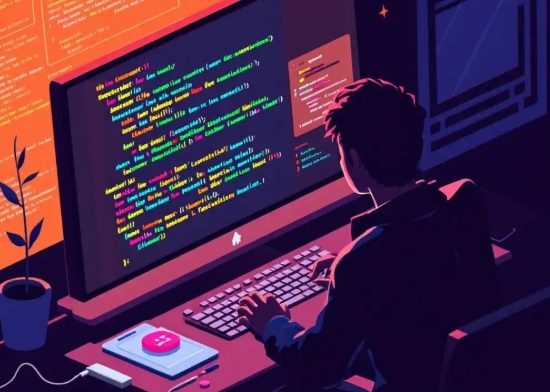
Congratulations on deciding to learn how to code! Before you can build amazing websites, apps, or software, you need a digital workshop—a "development environment." This is just a fancy term for the collection of tools on your computer that lets you write, test, and run your code.
Don't be intimidated! Setting up your first environment is a key milestone. We'll walk through it step-by-step.
Think of it like a chef's kitchen. You need a stove (interpreter/compiler), a countertop to prepare food (text editor), and a way to taste your dish (output terminal). A development environment combines these elements:
A Code Editor: Where you write your code.
A Runtime or Compiler: The "translator" that turns your code into something the computer understands.
A Terminal/Command Line: A powerful tool to run commands and execute your programs.
Your code editor is your home base. For beginners, we highly recommend Visual Studio Code (VS Code). It's free, powerful, and has a huge library of extensions to help you.
Action: Go to code.visualstudio.com, download, and install it. It's available for Windows, Mac, and Linux.
What you install here depends on what you want to code. Let's start with the web.
For Web Development (JavaScript/Node.js):
What it is: Node.js lets you run JavaScript outside of a web browser.
Action: Go to nodejs.org and download the "LTS" (Long-Term Support) version. The installer will set everything up for you.
For Python Development:
What it is: The Python interpreter runs your Python scripts.
Action: Go to python.org, download the latest version for your OS, and run the installer. Important: During installation, check the box that says "Add Python to PATH."
Let's make sure everything is installed correctly.
Open your Terminal:
Windows: Press Win + R, type cmd, and press Enter.
Mac: Press Cmd + Space, type Terminal, and press Enter.
Check Node.js: Type the following command and press Enter:
bash
node --version
You should see a version number like v18.17.0.
Check Python: Type the following command and press Enter:
bash
python --version
or on some systems:
bash
python3 --version
You should see a version number like Python 3.11.4.
If you see version numbers, you're all set!
Let's bring it all together.
Open VS Code.
Create a new file and save it as hello_world.js (for JavaScript) or hello_world.py (for Python).
Type the following code into the file:
For JavaScript (hello_world.js):
javascript
console.log("Hello, World! My first program is running!");
For Python (hello_world.py):
python
print("Hello, World! My first program is running!")
Run it! Open the terminal inside VS Code (View > Terminal).
For JavaScript, type: node hello_world.js
For Python, type: python hello_world.py
You should see the message "Hello, World! My first program is running!" printed in the terminal. You did it!
You now have a functional development environment! The next step is to start learning a programming language. Explore tutorials on JavaScript, Python, or HTML/CSS. Remember, every expert developer started exactly where you are now.
Happy coding!





Share This News